
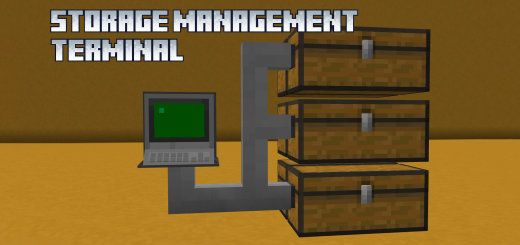
About Storage Management Terminal
A small terminal that allows you to manage, search, sort and save items in a large number of chests at once.The main functionality of the addon is to manage a large number of chests from a single block, from the storage management terminal you can save, obtain, sort and search for items.
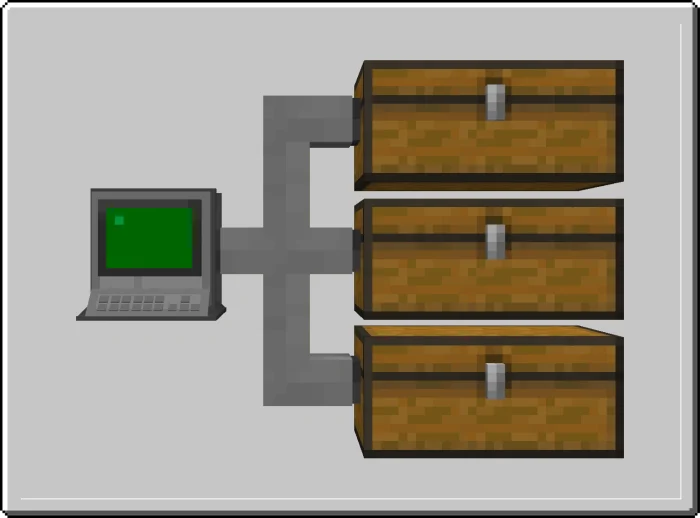
How does it work? To start managing your chests you must first place a terminal where you want, then place cables from the terminal to all the chests you want to connect, and then you simply have to interact with the terminal.
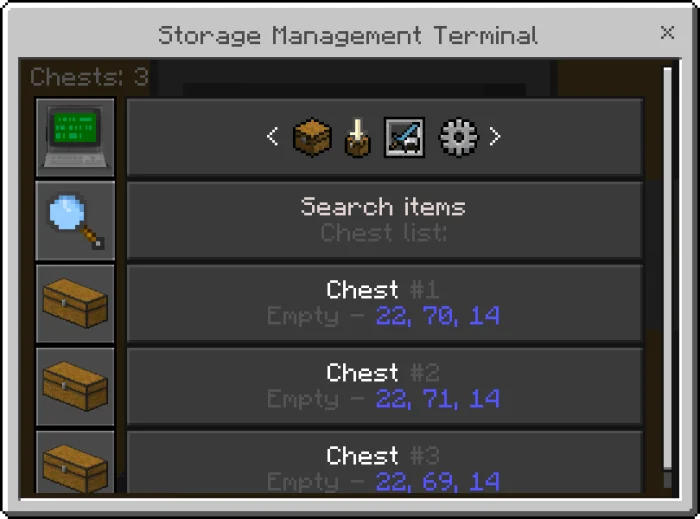
When the terminal menu is displayed, the first thing you will see is a list of all the chests you have connected, the search button and the more options button.
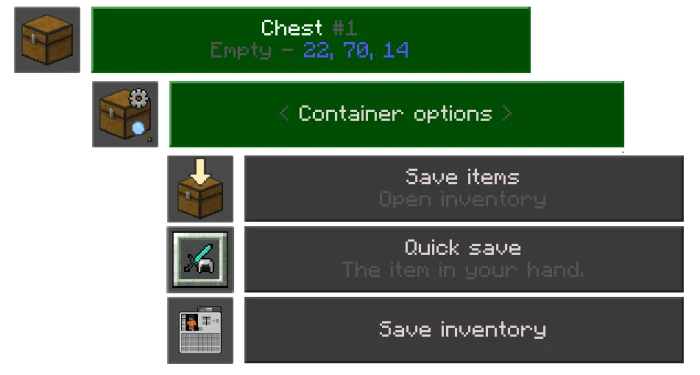
To save an item to a specific chest, select the chest, go to container options and select one of the three options available for saving items.
Save items: In this option you can open your inventory and select an item
Quick save: In this option you can quickly save the item you have in your hand.
Save inventory: With this option you can save all your inventory or just part of it such as your hotbar or equipment.
After selecting an item, simply choose the quantity you want to store in the chest, and you're done.
You can also save items without having to select a chest, you just have to select the first button in the main menu and then select one of the three options to save items.
You can also choose if you want the items to be saved in the first chest, in the last, in one with similar items or in a random one.
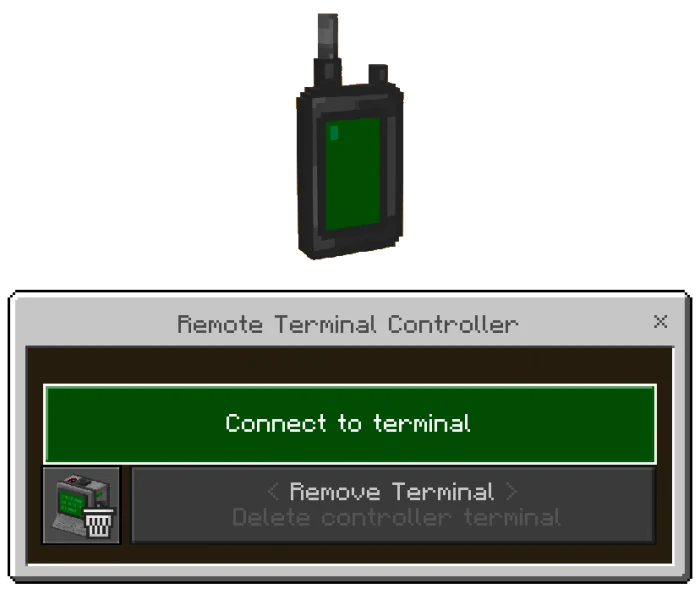
Remotely connect to the terminal Connecting remotely to the terminal can be very useful for saving items when your inventory is full or for grabbing items like tools or food.
To remotely connect to a terminal, you must first add it to the device's list of terminals. To do this, interact with the terminal while holding the device in your hand, and press the add button. After that, the terminal will be added to the device with the name you have chosen.
You can also manually add terminals to the remote device.
Storage Management Terminal screenshots
How to install Storage Management Terminal
- Download the .mcaddon file using the button on this page.
- Open the downloaded file with Minecraft Bedrock Edition.
- Wait for Minecraft to confirm that the import has completed.
- Activate the imported pack in the world settings.
- Back up important worlds before installing community content.
Creator: Effect99MC
Download Storage Management Terminal (1.20) Tools for free